
Look for color spill at every boundary
Inspect handles, holes, hair overlap, fingers, seams, trim, and narrow gaps. A clean center area can hide unwanted tint on the background or a neighboring object.
Change the color · keep the material
Upload a product, garment, vehicle, room, or object photo, identify exactly what should be recolored, and preserve material, texture, reflections, shadows, labels, and every non-target region.
AI Image Color Changer working editor
Define the recolor
Color replacement needs a target, not just a swatch. The object choice tells the editor where the change belongs; the finish choice explains how the new hue should behave across texture, highlights, reflections, and shadow.
Prompt assembled from this task setup
Change only the main product shell to cobalt blue with the original surface response. Preserve material texture, finish, seams, grain, and surface wear, highlights, reflections, contact shadows, and cast shadows, shape, authorized labels, surrounding objects, and all non-target colors as close to the source as possible. Do not recolor skin, background areas, trim, text, or neighboring objects outside the named target.Before and after
This illustrative pair changes one unbranded bottle from olive green to cobalt blue. Compare the object, tabletop, cap, material, highlight shape, shadow, and surrounding scene to confirm that the new color stays inside the intended surface.
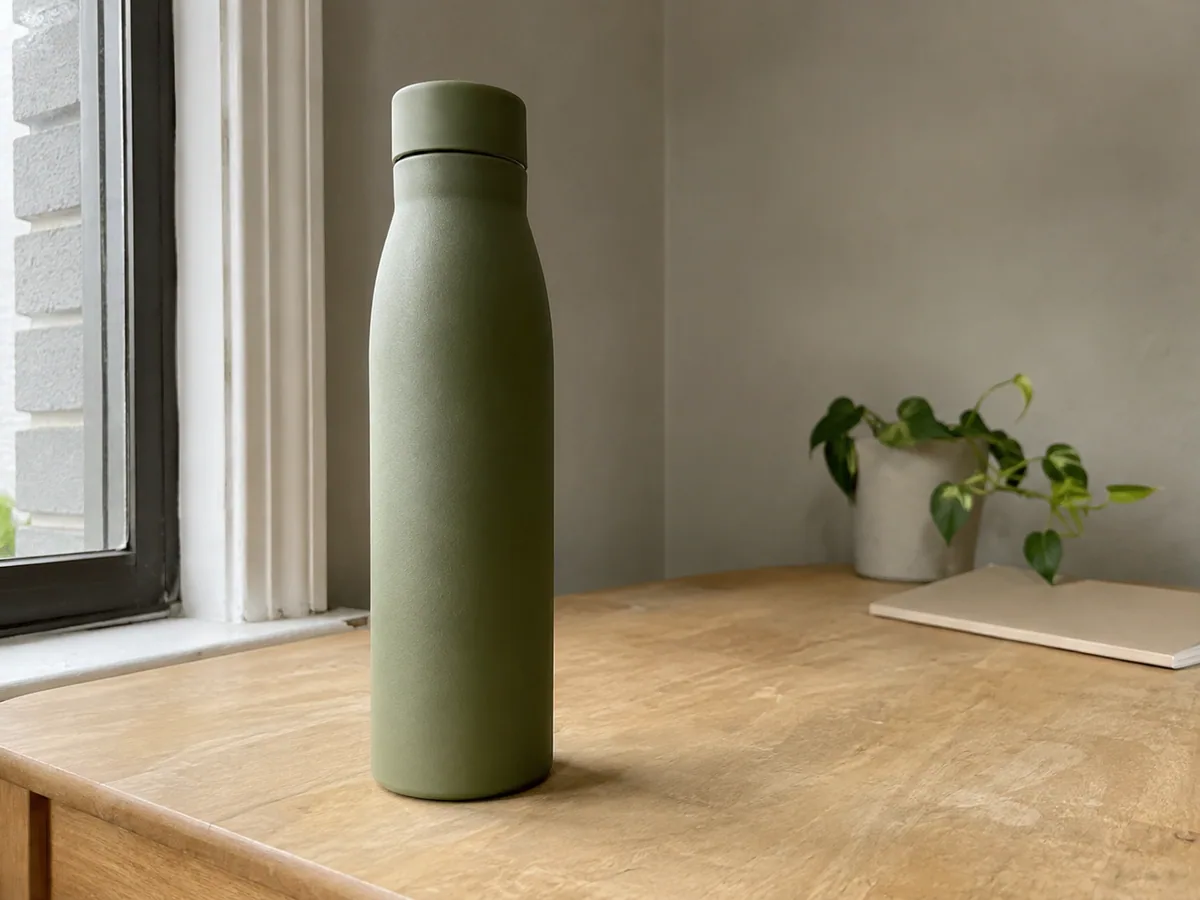
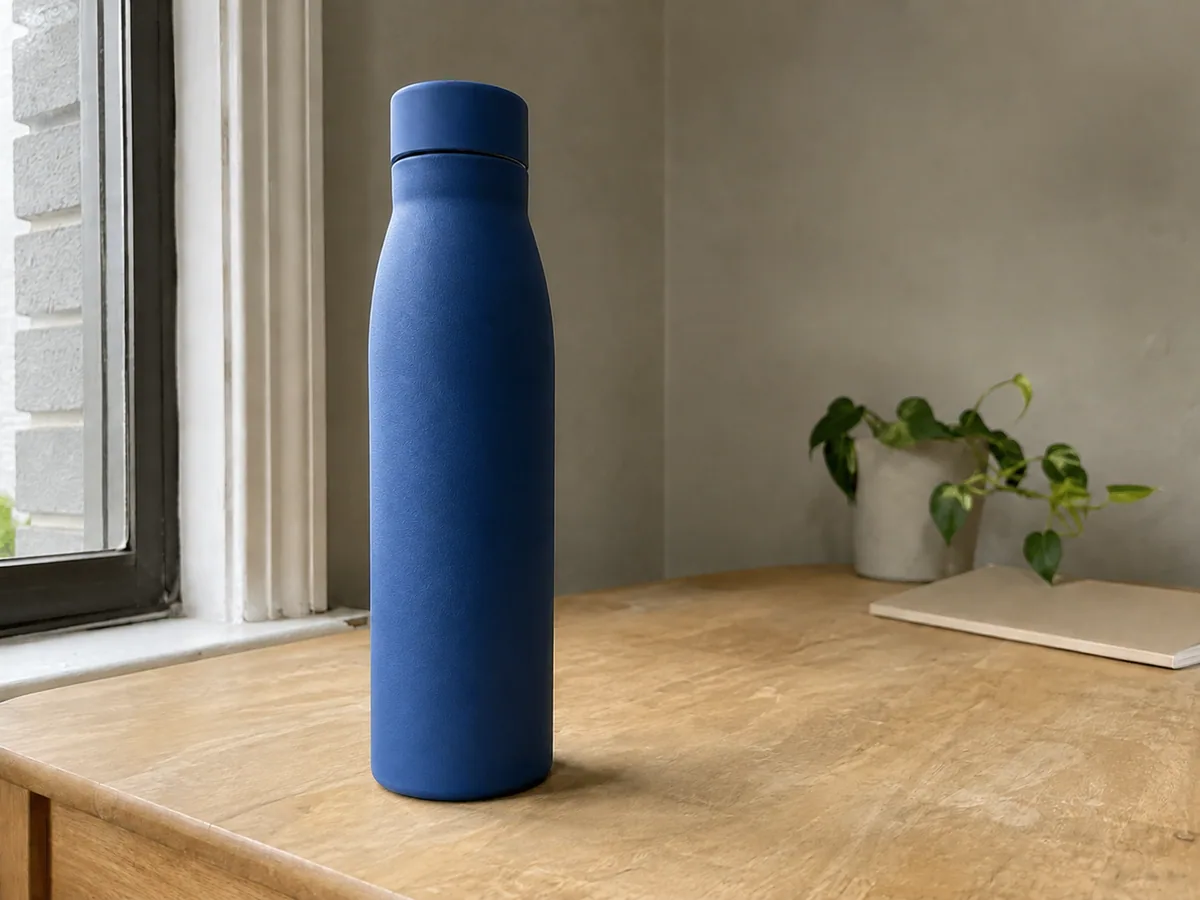
Olive bottle → cobalt blue
Inspect handles, holes, hair overlap, fingers, seams, trim, and narrow gaps. A clean center area can hide unwanted tint on the background or a neighboring object.
The new color should still respond to the source light. Plastic, metal, cotton, leather, painted wood, and glossy panels need different highlight widths and tonal variation.
Recoloring can soften text, stitching, grain, buttons, or small openings. If one area drifts, keep the selected hue and strengthen the exact preservation instruction in the next pass.
Control the recolor
The task controls turn a broad prompt into a target object, color direction, and review list. They do not create a pixel mask, so the generated result still needs edge, material, and non-target inspection.
Name the garment, product, wall, furniture piece, vehicle, packaging area, or other visible object to recolor.
Ask the model to retain fabric weave, grain, gloss, metallic reflections, highlights, shadows, and printed details.
Specify that skin tones, background, logos, text, and nearby objects must stay unchanged.
Build fast alternatives for merchandising, client approval, interior planning, and campaign decisions.
Recolor directions
Use a prompt that names the target and protected details. After the first result, change the hue or finish while keeping the target wording stable so the versions remain comparable.
How it works
A clear target and visible surface evidence matter more than a long list of color names. Begin with one object, choose one hue, and check how its material reacts to the original light.
Choose a JPG, PNG, or WebP with the subject and details you want the AI to preserve.
Name what should change and what must stay untouched. Specific instructions produce more controlled edits.
Review the result, adjust the prompt if needed, and download the version that best matches your goal.
Where it helps
Product options depend on label and shape continuity, clothing variations depend on fabric and skin boundaries, and interior changes depend on keeping furniture and daylight outside the selected surface unchanged.
Preview garment colors while retaining fabric, construction, model, pose, and lighting.
Compare finishes and brand colors before building new product photography.
Test wall, furniture, textile, and accent colors in the context of an existing room.
Input and review advice
The model has less visual evidence when the target blends into the background or mirrors its surroundings. These practical checks help decide whether to tighten the prompt, crop the source, or choose a clearer image.
Use its location, material, and current color when several similar objects appear in the source image.
Mention logos, labels, typography, stitching, and graphics explicitly when they must remain unchanged.
“Matte cobalt blue aluminum” gives the model more useful direction than a broad request such as “make it blue.”
FAQ
These answers describe prompt-based generative recoloring. They do not promise an exact product color, a reusable mask, or perfect preservation of every label and reflection.
Upload only images you have permission to edit.Yes. Identify the object clearly and state that the rest of the image must remain unchanged. Results are more reliable when the object is visible and well separated.
The model can rebuild the new color through existing highlights, shadows, texture, and reflections. Explicit preservation instructions improve the result.
Yes. Clothing, products, furniture, walls, packaging, vehicles, and many other clear objects can be recolored.
Free daily credits are available for trying supported image-editing models. The exact credit cost varies by model and resolution.
Yes, but changing one clearly named object at a time usually gives more control. For several objects, describe each object and target color separately.
Ready for one color change?
Name one object, select a color direction, and inspect edges, reflections, labels, and every non-target region before using the result.