
Compare recognition before admiring the finish
Check the face or product form, species, key proportions, markings, and silhouette. A polished image is not a successful restyle if it silently replaces the subject.
Change the aesthetic · keep the subject
Upload a photo or product image, choose a visual medium and transformation strength, and tell the editor which subject, pose, silhouette, construction, and composition details should remain recognizable.
AI Image Style Changer working editor
Build the style direction
A style name alone leaves too much open. Start with a medium, choose the transformation strength, and identify the visual facts that carry the source: subject identity, pose, silhouette, product construction, architecture, or composition.
Prompt assembled from this task setup
Transform the image into cinematic editorial photography with controlled contrast, restrained film grain, and directed natural light. Apply a subtle treatment: change palette, texture, and light while staying close to the source. Keep subject identity, facial structure or species, and recognizable form, pose, gesture, silhouette, limbs, and proportions, camera, crop, composition, architecture, and product construction recognizable and close to the source. Do not add text, logos, extra subjects, or unrelated fantasy elements.Before and after
This illustrative pair transforms one natural-light dog photo into a restrained gouache treatment. Compare the dog, ears, front paws, tail, pose, sofa, window, and framing to confirm that the style changed without replacing the subject or composition.
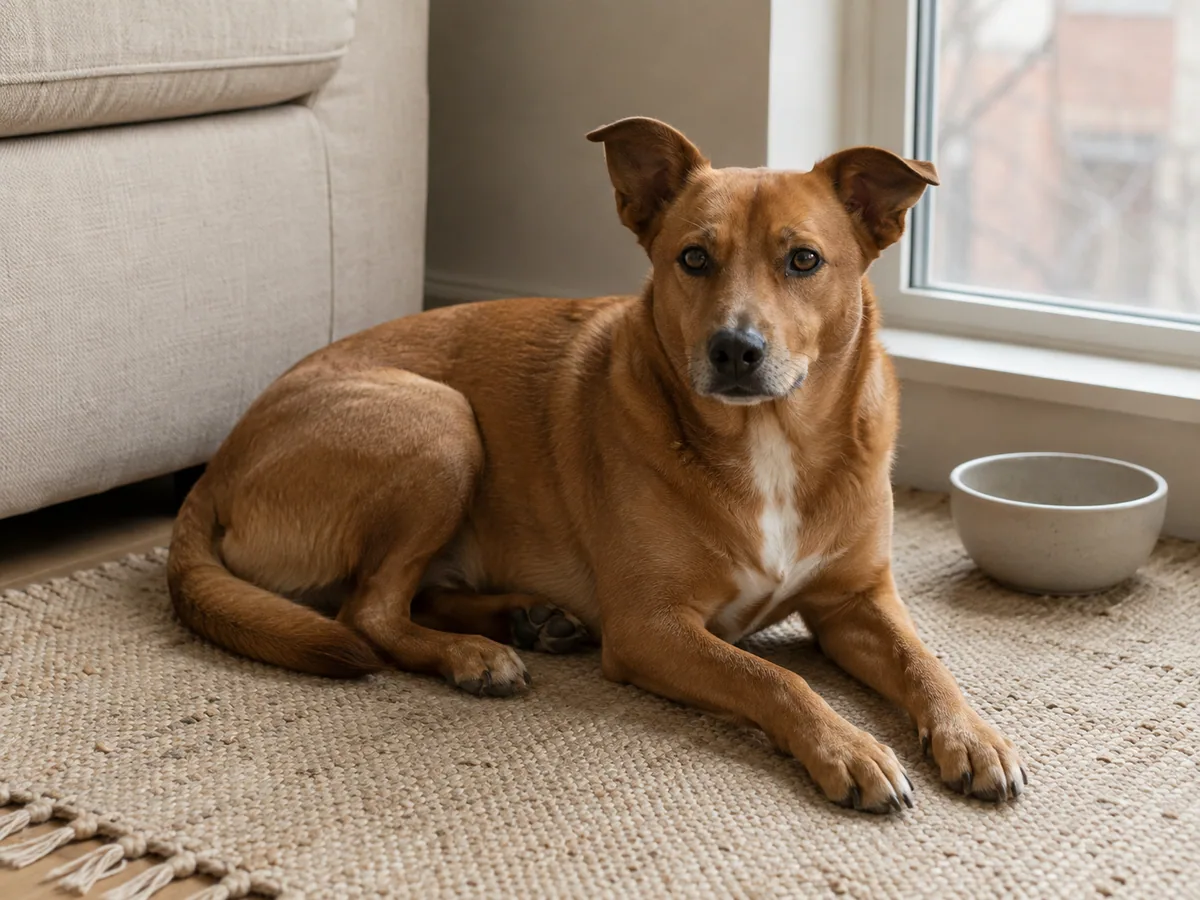
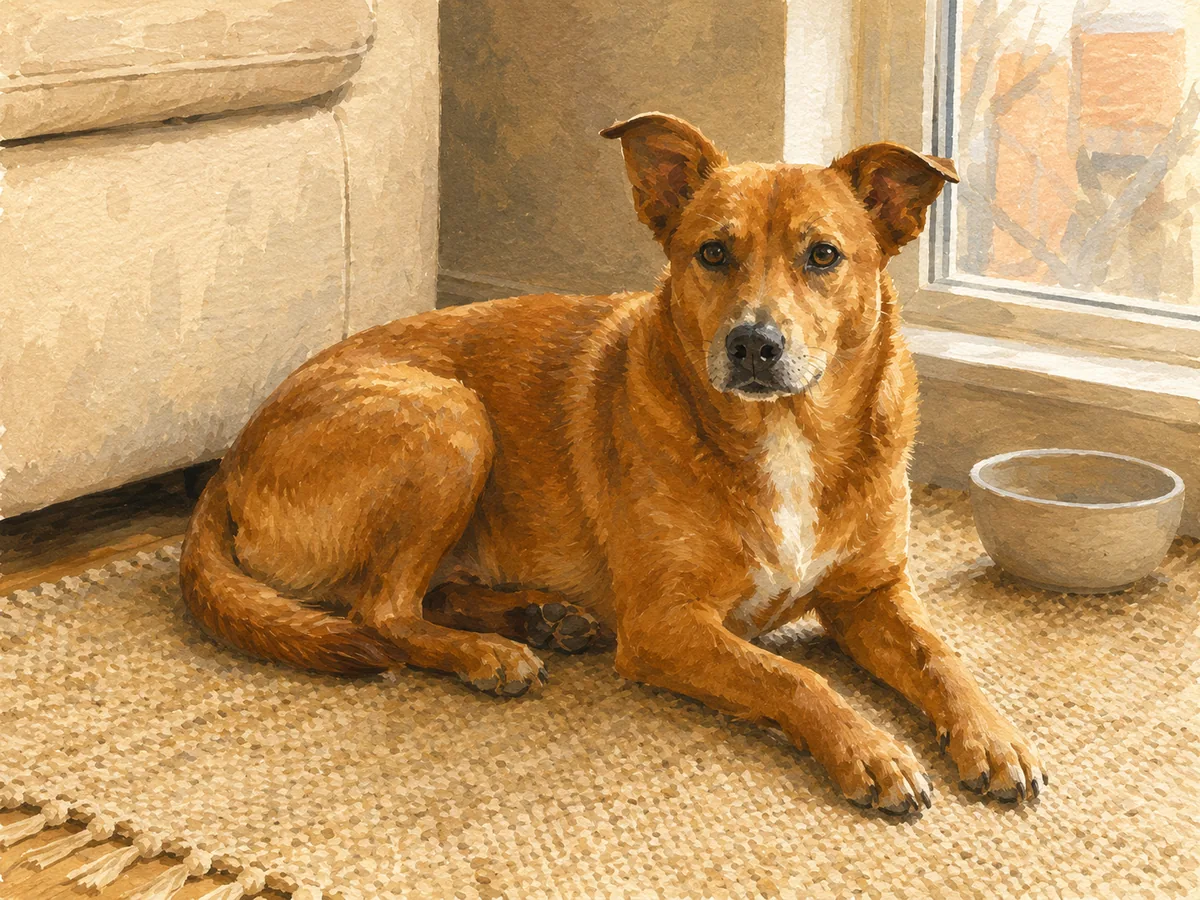
Natural photo → gouache illustration
Check the face or product form, species, key proportions, markings, and silhouette. A polished image is not a successful restyle if it silently replaces the subject.
Strong media changes can merge paws, fingers, straps, handles, panels, or furniture edges. Inspect the structures that make the source physically coherent.
Compare camera angle, crop, subject scale, background layout, and major light direction. If those drift, reduce the transformation strength or add more explicit composition protection.
Control the transformation
The page gives style intent a product state instead of relying on one vague adjective. References can guide palette or texture, while protection choices define what should survive a stronger reinterpretation.
Combine medium, era, light, palette, texture, lens, rendering quality, and mood in one focused direction.
Use Multi Fusion mode to provide a source image and visual references for palette, material, or art direction.
Ask the model to retain identity, silhouette, composition, pose, product design, or architectural structure.
Compare cinematic, editorial, illustrated, anime, cartoon, painterly, sketch, and 3D directions from one source.
Style directions
Each prompt combines rendering method, light, texture, palette, and preservation. Use it as a starting point, then remove attributes that do not serve your source instead of stacking every style into one request.
How it works
Choose a recognizable source, define the new medium, set the transformation strength, and name the subject and composition anchors. Compare those anchors before refining color or atmosphere.
Choose a JPG, PNG, or WebP with the subject and details you want the AI to preserve.
Name what should change and what must stay untouched. Specific instructions produce more controlled edits.
Review the result, adjust the prompt if needed, and download the version that best matches your goal.
Where it helps
Portrait work depends on identity and pose, illustration work depends on narrative composition, and product visualization depends on construction. The same style word should not hide those different review criteria.
Explore a stronger visual language for portraits, products, social creative, and launch imagery.
Turn a photographic source into a painterly, graphic, cinematic, or story-driven visual.
Create polished 3D, exploded-view, lifestyle, or conceptual renderings from product references.
Input and review advice
Small faces, cropped limbs, tangled silhouettes, reflective products, and cluttered scenes can become harder to interpret under a strong style. Use these checks to adjust strength or supply a clearer reference.
Add palette, light, texture, medium, era, contrast, lens, and mood instead of relying on a single broad style word.
Mention the face, silhouette, product construction, architecture, pose, or composition that carries the original identity.
Ask for a subtle treatment when consistency matters, or a complete reinterpretation when exploration is the goal.
FAQ
These answers describe generative restyling. Stronger transformations can introduce variation, and visual references guide rather than guarantee exact palette, texture, identity, or composition.
Upload only images you have permission to edit.Upload a source image, describe the desired medium, palette, light, texture, and mood, then specify which subject and composition details must remain recognizable.
Yes. Multi Fusion mode supports multiple images, allowing you to combine a source image with visual references for color, texture, or art direction.
Identity can be preserved, but stronger transformations may introduce variation. Use a clear source and explicitly request the same facial features, hair, pose, and proportions.
You can request cinematic, editorial, realistic, anime, cartoon, sketch, painting, collage, retro, graphic, and polished 3D directions, among others.
Describe the change as subtle, moderate, or complete and specify what must be preserved. You can refine the prompt over several generations.
Ready for a new visual language?
Choose one medium, decide how strong the transformation should be, and compare the subject, silhouette, structure, and framing after generation.